Monday, February 8, 2010

3D art -- a capacity for unearthly beauty


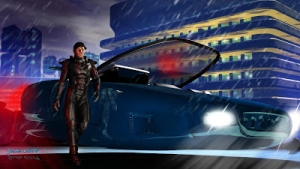
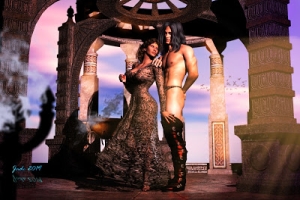
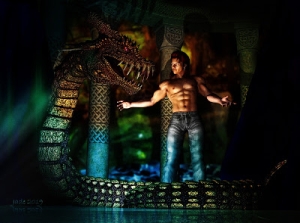
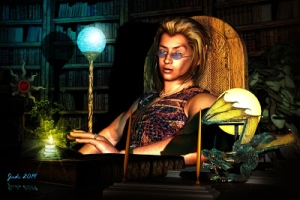
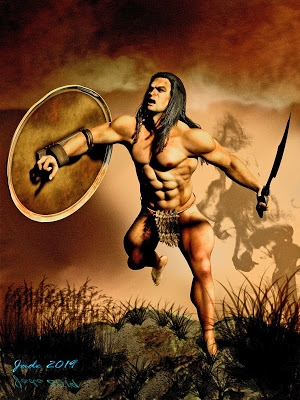
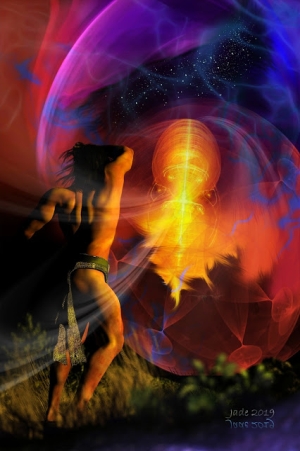
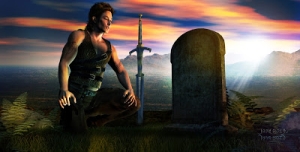
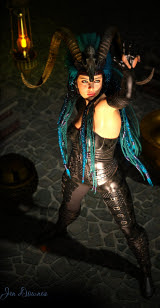
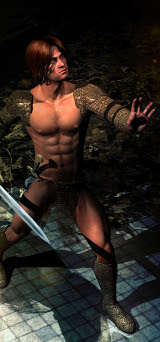
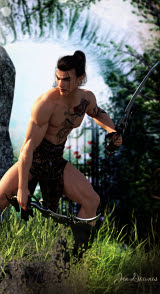
  • 3D art ... fantasy horses ... beauiful young men ... unearthly beauty in both species ... what else can you say? You practically don't need me to ramble on -- but I will anyway, because these are very very complex shots, and I promised a long time ago to share how it's all done!

    The shots above involve these materials:

    Michael 4 (face designed by me)
  • Danyel's hair set to long in the back
  • Jagger skin map, no tattoos or hairy chest
  • Speedoes from the M4 Basic Wear pack, set to skin tone
  • Millennium Horse
  • CWRW Pro texture set to Dappled Gray
  • MAT-Mor mane add-0n: man set to long and curly
    Grass prop from the Horizon redux prop set
  • Stone pedastel from the EROC column construction kit
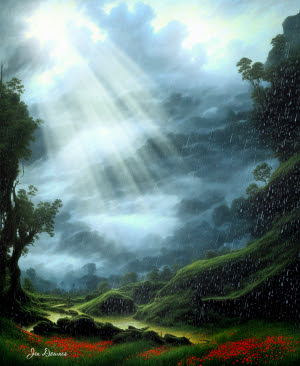
  • Backdrop digital painting (by me)
  • 2x shrubs from the DAZ Cyclorama "wilds" kit
  • 1x tree prop from the DAZ Cylorama forest kit
  • 4 distant lights set to blue and mauve
  • 6 point lights set to blues, greens and white
  • Deep shadow maps set for all distant lights


...and that's where the fun begins, because that lot loaded into the scene is enough to slow the computer way down. But it's well worth the work of posing the horse and boy this way and that because the results are gorgeous.

One thing I have discovered: when you're working with a heck of a lot of models in the same scene, it's actually easir (much) to fly the camera around the stationery models than to try to move all the models around. Think about it! The model stays still, the camera moves ... the model appears to move as the camera flies around.

To do this, select Default Camera in your Views drop down (the one in the very corner of the Viewport), and also select Default Camera fromyour scene contents list ... usually sitting at the bottom of a gigantically long list is things you've imported. Now, you're seeing threough the camera. So if you move the camera UP, eveything in the shot goes DOWN. If you move the camera to the right ... you got it. Everything in the shot goes to the left. Same for rotations. For Zoom, you use the Z coordinate slider ... zoom in, zoom out.

And here and there the whole scene just comes together and something beautiful appears. This is when you'd click the shutter, if you were using an actual camera. This is a virtual camerta, so when you see something beautiful hit RENDER!

I confess that there's a fair bit of post production work done on these images too, and I ought to talk about "post" techniques. You can take reasonable shots and make them good in "post," and you can take good shots and make them phenomenal.

So join me tomorrow, and we'll talk about Post Production effects...!

Jade, 9 February

Sunday, February 7, 2010

3D art and drama merge ... the plot thickens!


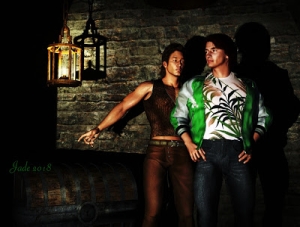
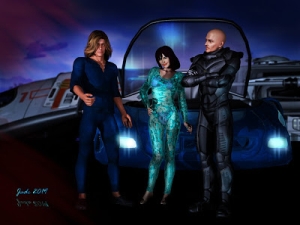
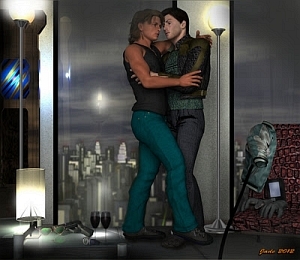
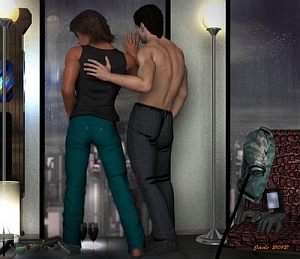
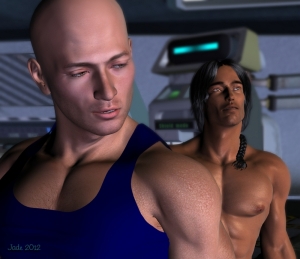
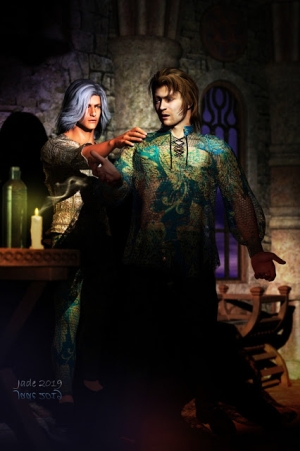
3D art crosses the line into fiction, storytelling ... a scene is playing out here, and the characters we saw a few days ago in two separate scenes have rendezvoused, probably to do a job ... and by the looks of this, it's a conspiracy!

You remember these:

(Click on the images to go to the original posts and see the full series of renders...)

The plot just thickened ... and I do believe there's a little righteous treason and a lot of drama unfolding. You know, I'd like to see this movie!

The biggest challenge in today's renders was the costuming. There seems to be a problem with the Tex texture for the duster coat worn by the tall dark warrior. When you move the coat to pose the character, the texture doesn't resize and reshape properly around the right arm and shoulder. This meant a bit of post production work, to paint it in. No big deal, it's not as if it's hard or time consuming to do this.

Another interesting thing is ... the shirt and pants worn by the young dancer-assassin who was practising the martial arts in the woods earlier: they're the same pants and shirt from the M4 Cowboy costume set, but you'd hardly know it. The shirt has become light, silky, flimsy, loose. You do this by deleting the fabric texture map, and then changing the opacity and color, and using the "morphs" supplied with the costume to make it bigger, looser. Same with the pants -- delete the map as supplied, then change the color and surface characteristics, so that the pants look a lot like moleskin (which has nothing to do with moles ... it's something like satin or velveteen or something like that -- not quite sure what it is, but it's fabric, not leather).

The lighting setup was fun (not). I just couldn't get it right for some reason and spent about half an hour changing colors and brightness and ... so on. I got it in the end, though. Phew!
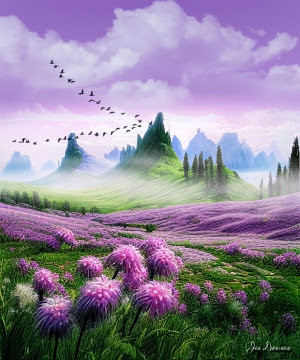
For the first time, I'm showing the top of the wall, so you're obviously at the corner of an outside wall, with the woods all around. The wall is still the upright part of the Backdrops Made Easy prop set, but it needed a "cap" ... so I used the "top beam" construction member from a set of columns I got a week or two ago. The columns are for building Greek and Roman temples, that kind of thing, but I remembered the top beam, and it made the perfect top for this wall.

The finishing touch is the earring on the young dancer-assassin. It's from the Destiny Jewels props. I've used a couple of pieces from this set before; Amadeus is wearing the necklace, and the golden yaoi beauty from last month is wearing the headpiece, re-positioned as a collar. That turned out to be a very versatile set of props!

Jade, 8 February

Saturday, February 6, 2010

D3 art: experiments in Raytracing

Raytracing ... what in the world is it, what's it all about? In the six months since I started doing this art, I've wanted to run the experiment and see the difference (if any) between the "deep shadow map" that I've been using to generate the shadows on countless hundreds of renders, and the Raytraced shadows. Raytracing is a software rendering "engine" that literally tracks every single ray of light you've got shining on your models, and figures out where they'll all land ... and then calculates in the color and strength of the lights ... and figures out how they'll react when you're bouncing them off surfaces.

No wonder it takes about 10 minutes to render a single image! By contrast, the same image using the Deep Shadow Map system would render in about one minute or less. That system uses at least one "pass" for each light, so if you've set 10 lights, that's 10 rendering passes before you get to the render; and you can also get into the advanced rendering settings and configure it for more than one pass per light.

O...kay. So the big difference is first about time. Don't set your render to Raytrace unless you really are going out for coffee. But then, what's the quality like, when the work is all done?

Well, compare these: ( You really need to look at the at large size, so go ahead, click on them -- they were uploaded at 800 pixels wide, so you can see the detail) ...


This one, above, has the Raytraced shadows. This one, below, has Deep Shadow Map:

And the place where you can really see the difference is in the fine shadows ... for ex., where the shadows of his hair cross his face, and around his left hand on the reins:
The difference is amazing -- look at the palomino's tail, also. In fact, there's so much more detail in the Raytraced shadow image that it turns out to be a mixed blessing ... because it shows up bunch of stuff that gets hidden by the lack of detail! (A bit like getting new glasses and noticing your wrinkles and gray hair for the first time. Did I just show my age?)

The only place, to my eye, where this "detail" pic gives away the fact it's 3D is how the fabric folds (or doesn't) around that left elbow. You can fix this, if you have another hour or two to invest in the project. Alas, I don't, so ... it's 3D Art, not photographic realism. What the heck, it's beautiful anyway!

Anyway, if you look closely at the two renders, the Rayrtraced one is so close the photographic levels of realism, that when something is obviously "done digitally," it really sticks out. Now ... you can fix every single little problem in 3D digitals, so your final Raytraced render would end up being so perfect, you could pass it for a photo and nobody would blink. BUT. It takes a lot of work. Instead of getting a new render every day (or a series of them) from me, for instance, you'd wind up with one a week! To fix all the "bugs" you have to fine-tune to a depth you don't see this side of Avatar ... and sometimes this means using Deformers to physically change the model that was delivered by the designer. (Deformers as very distinct from Morphs. You use Morphs all the time; Deformers are very cool, and very complicated.)

So it comes down to ... do you have time for Raytraced renders? Do you have time to spend adjusting the digital details to make them Raytrace-proof? Do you prefer to sweat blood on one perfect image, or get 20 images at 95% perfect, in the same?!

All good questions, and not for me to answer. I think I'll use Raytracing mostly when I do very complex portraits, where it would be so great to see the shadows cast by every eyelash ... that's art! Ars gratia artis, as MGM used to say. (Art for art's sake.)

I want to answer a question in today's post, also. I was asked, "How exactly do you take a photo and turn it into a painting, the way you did with Stampede Trail the other day?"

Fair enough -- good question! It's also dead simple. The only trick is "knowing when to stop" with the process, and that's the same in all kinds of art. Painters who work in oils and watercolors know exactly what I mean. Keep going and going and going, and the painting ends up looking like a flat, boring, muddy mess. Same thing with digital painting ... it's just faster to get the project done. (You can also make HUGE messes even faster ... you'll get intimately acquainted with the UNDO key!)

Here's how you do it:

Start with an image. I used a Mel Keegan photo from the 1998 Alaska trip. The location is Stampede Trail, which I understand is not that far from Fairbanks:


The photo is old ... meaning it's a PHOTO, not a digital image. So by the time you see it here it's already been scanned and enhanced. Also I borrowed this (with Mel's permission!!) from the Digital Kosmos site, so it's also been resized. But it's still a photo, and we want to wind up with something that looks painted, like this -- and you can't see the effect in this small version!! You need to open them both and compare them at full size to see the effect!! I've uploaded them at full-size here so you can see what I'm talking about. Mel's blessings, etc. etc.


It's a beautiful effect. So, how's it done? Now, I can't talk you through the process in Photoshop, because I don't use Photoshop, which I consider to be ridiculously expensive at $1,800. But I can talk you through it in Irfanview, which is free. And the process should be similar or the same in Paintshop, or whatever you're using.

  • Open the image you want to turn into a picture.
  • Open your effects browser...
  • Apply the MEDIAN FILTER in increments, over and over, until the photo has almost (not quite!) turned to colored mush...
  • Sharpen the image in small increments, over and over, till you see the painted effect.
  • Stop when the effect is "good enough" or what you want or need.


Too much median filter and you won't get the picture back -- it'll turn to mush. Too much sharpening on the way back, and you'll go past the point of having a nice painting, and will "overcook" it and wind up with pixelly rubbish. Deliberately make both the mistakes a few times, and see what happens! You learn better, faster, by seeing the mess and knowing what to avoid. And what the heck, it's digital ... it ain't costing you anything!

Join me tomorrow for a partnership of assassins, a young dancer and a master warrior who're on the same job: regicide in the public interest!

Jade, 7 February
Related Posts with Thumbnails


Adventures in DAZ Studio 3 ...Project One!


Download the PDF -- print out if you want to. You'll be astonished at what we can cover in this beginning tutorial ... and watch out for Project Two!
In this first tutorial, let me show you a world of new skills:

Navigate the interface
Open and Save files
Load a model (Michael 4)
Load an accessory (the hairdo)
Pose the model several ways
Fine-tune model pose/expression
Change perspective, angle and zoom
Set numerous point lights
Finely adjust the lights
Clone point lights
Set the render size in dimensions and resolutionSpot render on the fly
Recolor, crop and resize a background image
Set the background image in place
Render the final image


That's a great suite of skills! In the next project, we’ll be looking at more ofeverything: more props, more lights, more poses, real backgrounds.We’ll put a costume on Michael 4; we’ll add a high-resolution skin map, and we’ll look at howto make him “anatomically correct.”

Download size: 8MB (sorry: the tutorial revolves around images, there's no way to compress this).


Just $5!