Monday, December 28, 2009

Painting with light -- again

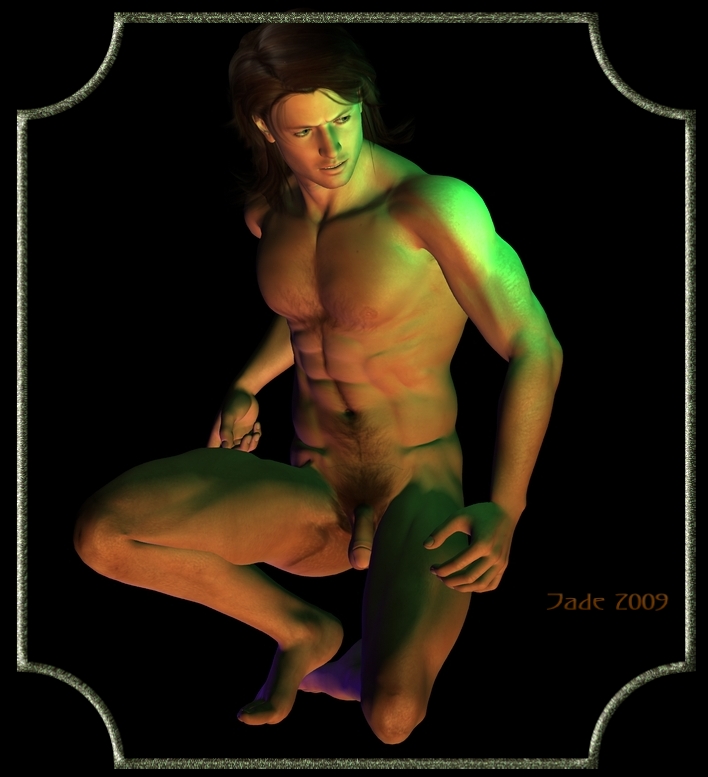
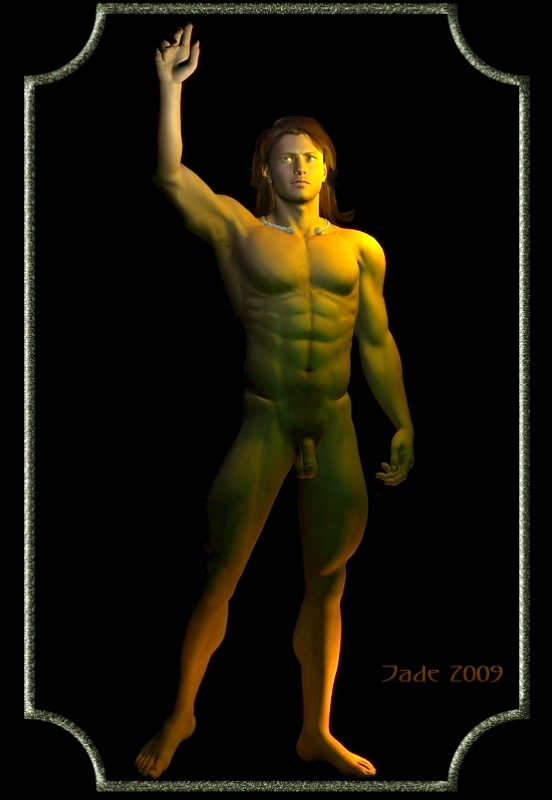
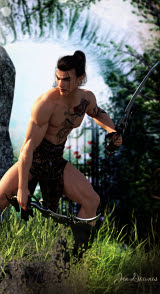
As promised ... a male nude art fantasy, which I think of as painting with light. This is where 3D work crosses a line and becomes real art, and there's quite a lot of skill involved. It's not all done by the computer! (In fact, you think it is, I urge you to get the DAZ Studio 3 software and have a go yourself. Believe me, great pictures don't just happen by themselves...)

This one, here uses two models -- Michael 4 and his hairdo -- and no background at all. But it does use five lights -- one distant light and three point lights -- and each light it set to a different color.

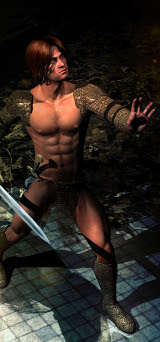
The idea for this picture occurred to me when I was looking at the render from a while ago, Valedictory:

Okay, this guy won. But that automatically means somebody else had to lose ... and it's a mistake to assume he was fighting an ork or a monster who was just begging to have its head lopped off! Suppose for one moment he was fighting a noble opponent -- a challenger, or maybe a prisoner taken in battle. The Romans did this all the time. You were captured as a prisoner of war, you wanted to live, you fought for the right. (Hey, I saw Gladiator three times at the movies and then bought the DVD!)

So, if this guy with the chain mail won, who lost? Which got me to thinking, and I decided I'd render the other side to this scene. Presumably the challenger was also dressed in chain mail when it all started. Notice, the armor is gone now, and the defeated will bend his knee.

Believe it or not, it's actually the same model with the costume removed, reposed, and the lights all reset! I know it doesn't look a bit the same, but that's what it is!

Two main things went into this picture: the idea, and a bit of skill "driving lights around." What in the world do I mean by "driving lights" ...? Bear with me.

When you create a light in Daz Studio 3, it lands on the stage in the o,o,o spot. This gives you a reference point for 1) finding it after you've created it (!) and 2) maneuvering it around! When scenes start to get big, you can start to lose things -- seriously! You can create a light and see no difference in the scene ... then the hunt is on and you're looking everywhere for it.

The best way to find things it to look at their coordinates in the x,y,z language of 3D worlds. Then, you can adjust the numbers and get the lights (or props etc.) exactly where you want them for best effect.

This picture uses Michael 4, wearing the Mon Chevalier hair set to dark brown; then I created a distant light ... nice and bright, so I could see what I was doing while I got the model posed! I started with a stock pose, but it was too off-balance from this angle ... and if you want do do a real a male nude you're a bit restricted in the pose you can use without, uh, everything showing! So I had to adjust the pose a lot to get what I wanted.

When you're painting with lights, you need to think about where the lights should shine to cause the shadows to fall just right ... and you need to think about colors, too. One of the things that you remember most about some of the paintings of Boris Vallejo is that he didn't hesitate to paint someone green down one side, because that was the way light fell on his subject's skin. I often try to emulate the "feel" of Boris's work, but I paint beautiful guys. If you wait for Boris to paint gorgeous men, you'll have a long wait. He paints men occasionally, and when he does, it's almost always the muscle-bound stereotype, and the bing! Right back to muscular women.

So think about colors, and when you add a light here and there to outline the model's calf or chest or thigh ... it doesn't have to be white!

To get the pose for this image I went through a few variations...

... and of course I rendered a proper nude one! In fact, I rendered two, but I'm not about to just upload them to the open blog here! We live in a society where about 50% of the world thinks there's something wrong with the nekkid human bod, no matter how perfect it is, and everybody and his uncle is out on the pickets campaigning to save kids from the evils of the Internet ... which can be, and are, extended to include a copy of this above picture, rotated another 20 degrees to your right!! (This is the part I don't get: humans are made in God's image? Then, is God's holy bod also, uh, shameful or whatever is supposed to be wrong? Leaves me scratching my head.)

Anyway, if you are of age (whatever that means in your part of the world), and if you're sure you're not going to be shocked out of your gourd and have your growth stunted, and end up in 500 hours of therapy by seeing a nude male human being, then -- click this to download the "full" version of the image, and click this to download the other full version ... and don't write any whining letters to me about him not wearing any shorts!

In other words ... enjoy, live a little, peace, man, and all that Sixties stuff which we need today a hell of a lot more than they needed it back then. (Bring back the sixties, please, somebody...)


Jade, 29 December

Sunday, December 27, 2009

Yaoi romance ... shadows and light

Here's a lovely fantasy ... Yaoi fantasy, if you'll forgive (or indulge) the whim! Cross-cultural romance. Hey, they do it in Star Trek. You ever notice that Bill Riker will chase anything in a skirt, doesn't matter the species! Now, add a dash of Yaoi and you get ... well, something like this, and like I said, it's a lovely fantasy!

I'm also still on the subject of casting shadows, as you can tell! If you're tuning in late, and you're wrestling with the problem of casting shadows in DAZ Studio 3 (or any 3D program come to that ... the theory is all the same), you might want to go back and take a squizz at the first couple of posts in this series:

1: 3D Fantasy and the World of Shadows
2: Heroes in 3D (and Shadowlands, continued)

You could write a whole book, never mind a chapter, on creating shadows and the affect realistic shadows have in an image. I'll try to keep it brief...!

First, a few words about the models ... uh, actors. You probably recognize them. The green-skinned beauty is the alien version of the Yaoi elven archer; the human in this shot is the same character I designed a long time ago:


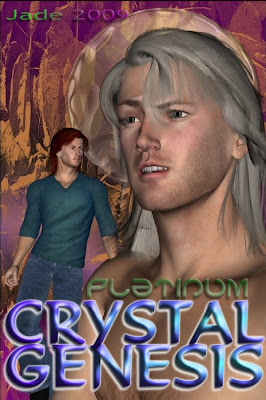
They're all Michael 4 ... same actor, different role. I made the elf green skinned and gave him a sci-fi costume. Then I took the "Platinum" character from Crystal Genesis and made him a redhead.

Here's something important: never, ever delete your old project files, because any character you created in those files can come out and play another part. Or think of it this way. You're creating a huge ensemble cast of characters. Very soon you only have to go back to the casting agency and tell 'em what you need, and out they'll trot.

Again, you need to think about the interactivity of the two characters -- it doesn't just happen by itself. You also need to think about the stature of the characters. For instance, you might assume that, being an elf, the pointy-eared one will be small. Well, maybe he would be, as an elf (smaller than Aragorn, at least). But there's no reason why as an alien he has to be small. So I made this one taller and a little more robust than the human. He's also raven haired, against the redhead; he's also smooth and ripped, against the hairy-chested and less-gym-happy human....!

Today's render was done with six lights: a distant light; a spotlight; two point lights off the human's right shoulder; one point light off the alien's left shoulder; one spotlight pooling light on the floor to give you a sense of depth and gravity, so it doesn't look like the guys are kind of floating against a background image. (The "playbill" for Crystal Genesis is like that -- no sense of gravity, because it's not a "scene" but just a photomontage.)

The point lights are just there to add highlights to the image. The highlight on the alien's arm, and on the human's cheekbone, and the pool of light on the floor. Take these away, and the picture is flat and boring.

The magic happens, though, in the balance between the spotlight and the distant light ... and this is the thing I want to talk about today. It's a big thing, though you might not think it at first. Mood, atmosphere, drama, all start right here...

Here's what happens when your distant light outweighs and out-muscles your spotlight:

It's an okay shot, but ... it looks like a rehearsal. It looks like the actors are going through their lines, getting it right while the lighting technicians do their thing. The only difference between the two shots is the brightness level of the distant light.


So here, you can plainly see that the white distant light and the orange spotlight are counter-acting each other and making a "vanilla" shot. In fact, let's go back another step and have a look at the shot without any lights at all. This is what it looks like with just the ambient lights that import along with the model(s):


And boy, is that ever vanilla! They really are obviously 3D models. The sense of reality ... and movement, and life ... isn't there yet. But these are the same models, same pose ... I just decided on a whim to take the jacket off one and put another jacket on the other, for variety.

When you turn down the distant light, the spotlight becomes the principle source of light in the shot. The whole brightness of the picture turns down, and most of the light is coming from one angle. This means you get the deeper shadow on the wall, and shadows form around surfaces and limbs and features. Suddenly the viewer's imagination kicks in... it's a passageway on an upstairs floor at a tavern where these guys met a while ago; and one of them's booked a room!

Painting with shadows is where 3D work really gets into the realms of art. This is one of the things I like the most ... painting with light and shadows.

And still there's more to say about shadows, but I'm going to leave the subject there for a while and come back to it later, because I'm working on something really good in the "male nude art" line, and I want to render that one for tomorrow.

Stay tuned...!

Jade, 28 December

Saturday, December 26, 2009

CG Heroes, again -- thanks again, DAZ!

Here's a dramatic shot -- and the drama is created on two levels. First, it's the interactivity. Jarrat and Stone are back in this shot ... two of my favorite characters from any book or show or movie. I can't resist these characters, never could.

(If you're tuning in late, and you're partial to cutting-edge sci-fi, and a paramilitary, mystery-thriller, adventure series, where the heroes are, uh, hot for each other, this is what you're missing: Mel Keegan's NARC. Fair warning: it's not suitable for kiddies ... but I do believe we're all grown up on this blog, so ...! Seriously, the NARC books are a total delight for us big kids!)

So, your drama works on two levels here. First -- interactivity: Stoney just got back from flying a mission, he's still in the flight suit, and he's either hurt or he's had the scare of his life. And then there's Jarrat ... worried out of his skull for his partner. And you'd expect this, when you remember that these characters became empathically linked together in the first book.

The drama in the picture is created by very careful posing of the characters. (Both of the characters started life as Michael 4. They were created separately according to the detailed descriptions in the books ... and this is the big fun of the DAZ 3D. You get to design your own characters, right down to the color of their eyes and the shape of their lips.)

The character poses are one of the two key things. The other one is the lighting. Specifically, it's the shadows, and the pools of light on the floor and wall of what looks like a utility room ... you take it for a pilots' ready room, or suiting room...

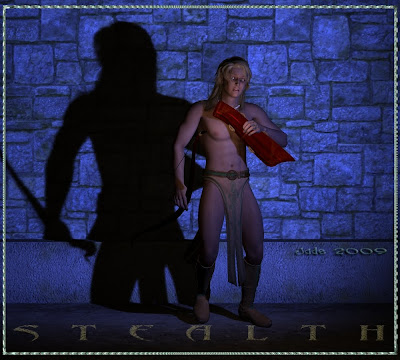
So, how was this done?! Well, yesterday I talked about casting simple shadows ... one light, one model to cast the shadow, one model to have the shadow cast onto:

This is actually Part Two of the same subject -- casting shadows! -- so you might want to go back to the previous post and start there. Or, if you already saw that, then let's drive on!

This shot has much more complex shadows than the image of the Yaoi elven archer sneaking through the castle courtyard. There's three models (Jarrat + Stone + the background), and to get this effect you use six lights! Here's how...


The first thing you need to do is just get an idea for the shot, and then (!) line up the obects in the scene. You have the wall, and a model in front of it, then another model infront of it, then the spotlight which is going to be casting the shadow.

Remember, spotlights are the only kinds of lights that cast the big, dramatic direct shadows, like a flashlight or torch... distant lights do cast shadows, but those shadows look like this:


Those shadows are great too ... in fact, if that's the effect you're after, set it up like this and stop right there! But there's not a lot of drama in the shot. The real, finished one looks like a scene out of a movie. This one looks like two guys standing in front of a drywall. Which is fine, too, if that's the effect you wanted.

Remember, also: lights will only cast shadows ON OBJECTS. Not on the backdrop, if the backdrop is just an image...

Last thing to remember: to get models to cast shadows, you have to turn ON the cast shadows control. If you forget to set this in the light's parameters, no matter what you do with your lights, you won't get shadows.

Okay so far. We have LIGHT --> MODEL #1 --> MODEL #2 --> WALL, all set up in a line so that the spotlight will hit the wall after the hits them, and cast the shadow; also, the light hits the first guy first, and casts his shadow on the second guy.

You might want to set the light to a color, to make the shot more interesting. With the ordinary white light(s), it's still a bit flat:


This version still only has two lights set -- and they're both white -- but I did put a texture into the wall, a kind of stucco. In this render you can clearly see the two shadows -- the soft one cast by the distant light and the hard one cast by the spotlight. Also, the angle of how the shadow falls shows you where the spotlight is!


But to me the shot still looked too flat, so I turned the distant light way down ... made the spotlight green, then added four "point lights" to cast pools of light on the wall and floor. This makes you think there are little angled ceiling lights overhead ... and the green lights makes you think of a locker room, or a ready room, where the light's very dim so the pilot's night vision comes up, ready to fly the mission. That's exactly the effect that was needed!

You might be asking, why do you need the distant light, if you have the spotlight? Well, the distant light -- being white -- adds "natural color" to the characters where the spotlight doesn't hit them ... ie., in the shadow areas. The distant light stands in for your ambient light. Without this, all you have is the green light, and the whole shot goes into pools of green and black ... which is very dramatic, but it doesn't make a good picture.

There's no real "rule" about this work. It's art, after all, and it's your picture. You have to get in and play, change everything, colors of things, the angle of the shadows, color of the lights, how the characters are interacting, expressions on their faces.

DAZ makes it possible to do literally anything, and I gotta tell you, I am loving this!

There's actually more about shadows ... there's one huge part of this I haven't even mentioned yet (hint: the DIFFUSE parameter), but this post is already longer than the entire Lord of the Rings trilogy, put together, so -- tomorrow.

PROJECT UPDATE: Part One of my tutorial series is nearly done. This one is for the just-starting-out, don't know my specular from my elbow, beginner. It's like 3D Painting With Numbers ... trust me: we'll have you making a glorious shot in the first tutorial. I'm doing it as a PDF, just a "bite size" document to download and work through, and you'll be well on your way. Then I'll tackle the next one! Look for this in a couple of days...

Other Jarrat and Stone images:
http://3d-adventures.blogspot.com/2009/12/3d-gay-heroes-jarrat-and-stone-looking.html
http://3d-adventures.blogspot.com/2009/12/gay-heroes-in-3d.html
http://3d-adventures.blogspot.com/2009/12/3d-character-creation-art-meets-reality.html
http://3d-adventures.blogspot.com/2009/11/ultimate-cult-heroes-get-new-3d-faces.html

And more to come in the New Year! I'm working on new versions of all the "old" art, and will revamp the webpages. Might even do new covers for the paperbacks eventually ... especially when the #6 comes out. Might do a new edition for the whole lot!

And here's a PS on this post, because I knoooooow you're wondering his this scene ends:

Jade, 27 December

Friday, December 25, 2009
3D Fantasy ... and the world of shadows


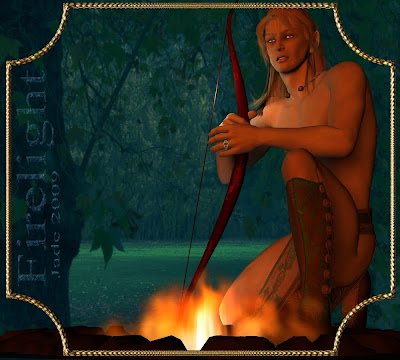
The Yaoi fantasy ... the immortal, timeless elf ... the beauty hits you first and then it's the level of complexity in this image that jumps out at you -- and the closer you get to the subject, the more detail you get. I invite you to click on either of these (or both of 'em) and see them at 1000 pixels wide!


The human eye is wooed ... seriously seduced ... by the realism of the shadows, and that's what I'm going to talk about today. Casting shadows in DAZ Studio 3. Because casting shadows is the other side of the "working with lights" subject, and when you start to get into this level of reality in the pictures, you're talking about some serious visual seduction here.

Casting shadows in 3D isn't that difficult, but it's complicated enough to make some major hurdles that you have to scramble over to get a handle on it. Put it like this: even for an artist with a bit of experience, the secrets of how to do this probably won't jump off the screen in surrender.

A few things you have to know, before you can do anything at all:

... Only spotlights cast directional shadows! If you're waiting for your oth erlights to cast directional shadows, you'll have a loooooong wait. (A directional shadow is the very definite shadow you get when pointing a flashlight (or torch, depending where i thr world you are).

...Objects can only cash shadows on other objects ... so if what's standing in the background isn't an object ... let's say it's just an image you're using as a backdrop ... you still won't get shadows, even if you're using spotlights.

...Shadows don't show up in the desktop, the workspace, the "working" version of the image that you're still manipulating. They don't show up till you render the image. So when you're working on it, you see something like this:


So, knowing these three things you go into the project with half a chance of getting results!

First thing you're going to need, then, is at least two objects so that one can be told to cast a shadow on the other ... and the other thing you'll need is the spotlight itself, which will cast the shadow.

There's a marvellous kit that you can get from DAZ for about $15, which will answer a lot of your prayers! It's called Backdrops Made Easy --


-- and boy, is this going to save you some time and grief. The product virtually speaks for itself ... you get a wide range of textures and the ability to change the color of everything ... and you get this beautiful right angle OBJECT which you paste the textures onto ... and yes, you can cast a shadow of it!

So instantly you're ready to stand a model in front of a background object, and use a spotlight to cast a shadow! (If you're looking at getting this model, guys, do remember that the DAZ Studio banner to your right is an affiliate link. The starving artist earns a couple of bucks when you buy your 3D goodies starting from this page. Thank you, thank you...)

So, let's assume you have a background that can accept a shadow (reminding you, a photo used as a backdrop can't take a shadow, so any model you stand against it is going to look like it's just hovering there), and you've got a model to stand between the background surface and the spotlight...

Right, let's load 'em up! Michael 4 makes an appealing place to start. Load up any props and costumes ... at the very least, a hairdo and a winning smile! Load up the wall behind him ... howzabout a bedroom wall? Then you can work with lamplight and get romantic. The Backdrops Made Easy kit has just what you need ... as well as moldy old castle walls; tumbledown fences; bricks; concrete; Spackle; cinder-block (aka besser brick), gyprock (aka drywall), timber panels, marble features ... and so on, and on. Pick whatever you fancy.
Then, pose the models. You can pose the background object exactly like any other object. Pose Michael 4 in front of it. Use your TOP VIEW and LEFT VIEW (or right...) to make sure Mike 4 is close enough to the wall to actually cast a shadow.

Now, it's time to turn on a spotlight!

Something you need to know before you do this. As soon as you turn on a spotlight, you lose your default ambient light ... the models are going to turn into two dead-black patches! You can, and will, get hopelessly lost! So it's a good thing that it's easy to work around this.

The reason the models go dead black is that when you swap the default light for the spotlight, there isn't any light at all shining on the model. You might expect the spotlight to turn on pointing at the model ... but it doesn't.

All lights (and props too, for that matter) are loaded at the o.o.o point ... meaning x=0, y=o and z=0. This is the "middle of the universe, as far as your 3D world is concerned. X is the left-right coordinate (think of it as being aCROSS the screen or page. X ... cross. Right. Then, Y is the up-down coordinate (Y looks a bit like a down-pointing arrowhead; make the connection visually, and this one is easy to remember). Z is the other one, the funny one ... from behind you, into the screen and into "infinity," it's the 3D coordinate -- depth. Think of it as a snake zigzagging away from you into the distance, getting smaller as it races away toward the horizon line.

So, all lights and props are loaded on the 0,0,0, point. If you loaded Michael 4 on this point too, then it stands to reason that the spotlight is between his feet! (That's an "aha!" moment. There's an intense sense of pleasure when this small detail dawns on you!)

So you need to change ALL the coordinates of the spotlight you just loaded up, to make it shine on Michael instead of away behind him at foot level. And you're in the dark, you have no idea where you are. You get so used to this process that very soon you won't need a security blanket of an extra light here -- soon, you'll type in a bunch of coordinates and the new spotlight will leap into place with a salute. But for the first few times, try this...

Add a distant light first. This sheds omnidirectional "sunlight" on everything, so you can see where you are while you jiggle the spotlight. Then, when you've got the spotlight right where you want it, delete the distant light!

Use your TOP VIEW to line up the three items ... light -- Mike 4 -- the wall.

Then hit render, and see what happened. Notice, you can set the color of the light ... and the brightness of it, and the "spread" of it. Notice, you have to TURN ON the "cast shadows" control on lights and models!!

This post is going longer than Ben Hur, so I'm going to pick up the threads tomorrow and finish it then -- complete with another beauty shot or two, of course! Got to get back to Christmas, now. It's Boxing Day, which in Australia (and many Commonwealth countries) is a continuation of the festivities. So...

Come back tomorrow to see how this turns out!

Jade, 26 December